

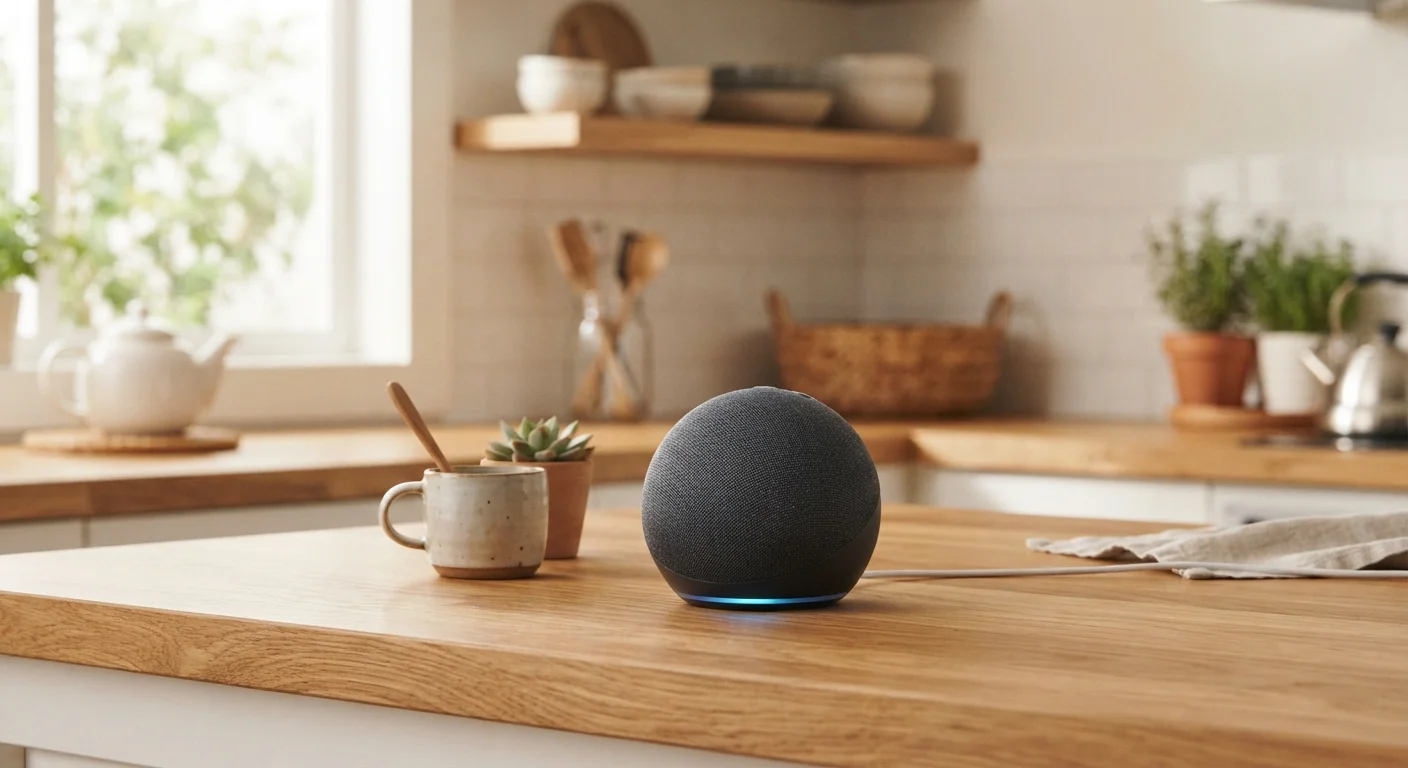
What to Expect Before You Begin
Setting up a smart speaker takes most people between 10 and 30 minutes, depending on whether you're also linking streaming accounts or smart home devices. The process is entirely guided by a companion app - you won't need to configure anything through a browser or type in technical settings manually.
Every major smart speaker ecosystem (the software platform and voice assistant that powers the device) follows the same basic flow: power on, connect to Wi-Fi via the app, sign in to your account, then personalize. If you're still getting comfortable with a mobile device, our smartphone orientation guide covers the foundational skills that make app-based setup easier.
If you're undecided between a smart speaker and a smart display (a speaker with a built-in screen), see our comparison of smart displays vs. smart speakers before unboxing anything - the setup process and daily use differ in meaningful ways.
What you will need
Gather everything listed above before starting. Having your Wi-Fi password written down saves the most common source of setup frustration.
Smartphone or Tablet
Required to run the companion app that guides you through Wi-Fi pairing and account linking.
Companion App
The platform-specific app (such as those provided by major voice assistant ecosystems) walks you through every setup step.
Home Wi-Fi Router
Provides the wireless internet connection your smart speaker needs to function.
Smart Home App (e.g., for lights or thermostat)
Needed only if you plan to link third-party smart home devices during or after setup.
Step-by-Step Setup Instructions
Secure Your Account Before Linking Devices
Your smart speaker account can control locks, thermostats, and cameras if you add those integrations. Enable two-factor authentication on your platform account before connecting any security-related smart home devices. A compromised account could give an unauthorized person access to those controls.
Plug in your speaker and open the companion app
Connect the power adapter to your speaker and plug it into a wall outlet. Most speakers emit a chime or light ring to indicate they are powered on and ready to pair. On your smartphone or tablet, open the companion app for your speaker's ecosystem and sign in with your platform account. Look for an option labeled Add Device or Set Up New Device - this starts the guided pairing flow.
Connect the speaker to your Wi-Fi network
The app will prompt you to select your home Wi-Fi network from a list and enter the password. The speaker uses a temporary Bluetooth or local hotspot connection to receive these credentials, then switches to your Wi-Fi automatically. Wait for the app to confirm a successful connection - this usually takes under a minute. If your router uses both a 2.4 GHz and a 5 GHz band under the same name, note that some speakers only support 2.4 GHz; check the product documentation if pairing stalls.
Choose a room and name your speaker
The app will ask you to assign the speaker to a room (for example, Living Room or Bedroom) and optionally give it a custom name. This label matters when you have multiple speakers - it lets you direct commands to a specific device by saying something like "play music in the kitchen." Choose a name that feels natural to say out loud.
Set up voice recognition (optional but recommended)
Many smart speaker platforms support individual voice profiles, which allow the assistant to recognize who is speaking and deliver personalized results - such as your own calendar or music preferences. In the app, look for a section called Voice Match, Voice ID, or similar. Each person in your household can complete their own short voice training sequence directly in the app. This step is optional but meaningfully improves daily usefulness.
Link music and streaming services
Navigate to the Music or Services section of the companion app to connect your preferred streaming accounts. You can typically set a default service so that a simple command like "play jazz" goes straight to your chosen platform without extra prompting. If you subscribe to multiple services, you can also set priority order for how the assistant chooses between them.
Create your first routine
Routines (sometimes called Automations or Shortcuts) let a single trigger - a phrase, a time of day, or an event - kick off a sequence of actions. For example, saying "Good morning" could turn on smart lights, read you a weather summary, and play a news briefing. In the app, go to Routines or Automations, tap Create, set your trigger, then add actions one by one. Start with one simple routine to get comfortable with the format.
Placement Affects Performance
Position your speaker at least a foot away from walls, corners, and large appliances. Microwaves and cordless phone bases can interfere with the 2.4 GHz Wi-Fi band many speakers use. Centrally placing the speaker in a room generally improves how well it hears voice commands from different angles.
Troubleshooting Common Setup Issues
Even when everything goes smoothly, a handful of issues come up regularly for first-time users:
- Speaker not found by the app: Force-close and reopen the app, then confirm Bluetooth is enabled on your phone. Some apps also require Location permissions to discover nearby devices.
- Wi-Fi connection fails repeatedly: Verify that you're entering the correct password and that your router is not using a hidden SSID (network name). Also confirm the speaker is within good range of your router.
- Voice commands aren't recognized reliably: Reposition the speaker away from the TV or other audio sources. Background noise is the leading cause of missed or misheard commands.
- Routine actions don't trigger correctly: Open the app and check that each linked service or device is still authorized. Accounts sometimes need to be re-linked after a password change.
Always-On Microphone Awareness
Smart speakers listen continuously for a wake word and process voice commands through remote servers. Review your platform's privacy settings in the companion app - most allow you to delete your voice history and limit data storage. Use the physical microphone mute button when you want the device to stop listening entirely.
If you enjoy building out a larger home audio setup around your speaker, our home theater audio guide explains how speaker groups, audio formats, and soundbars work together - useful once your smart speaker is running smoothly.
The content on this site is for informational purposes only and is not a substitute for professional advice. Always consult a qualified professional for guidance specific to your situation.