

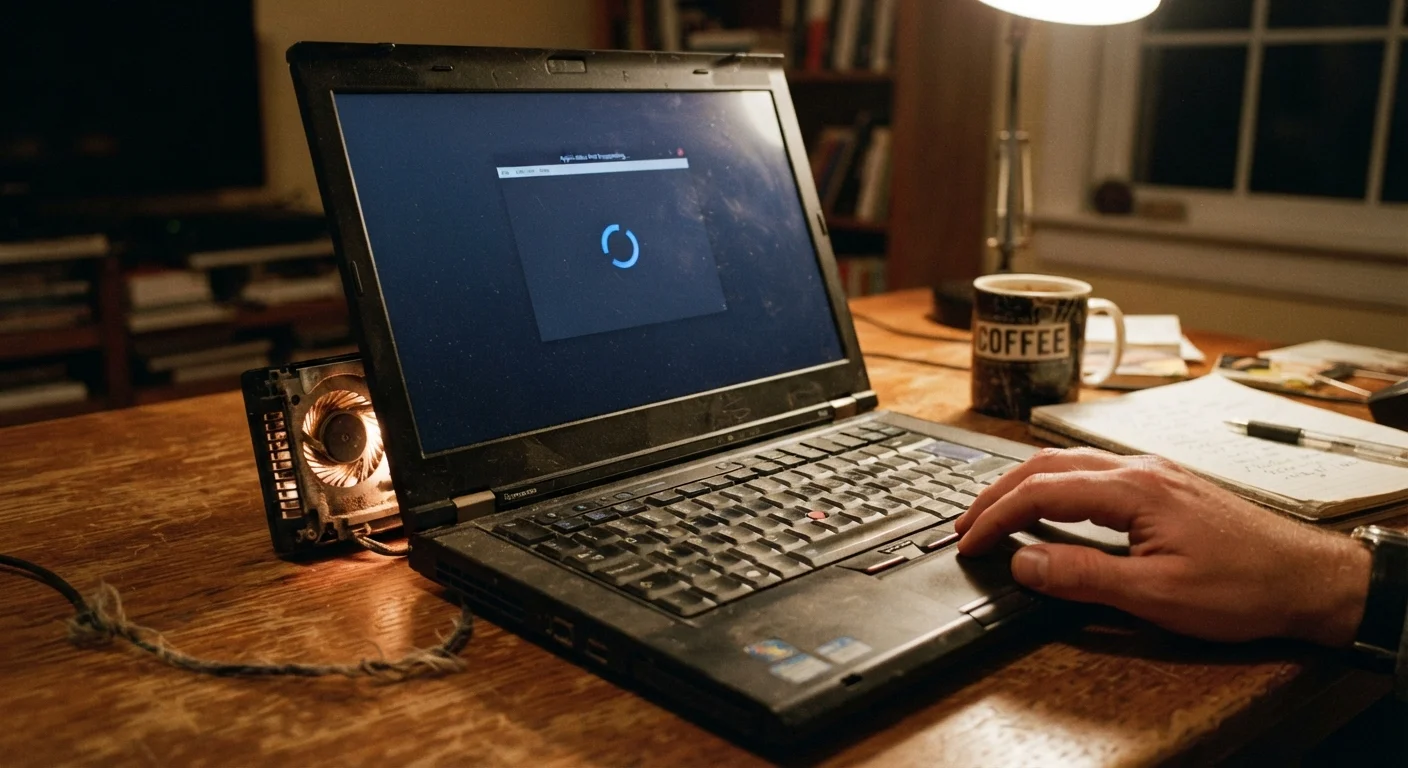
Why Laptops Don't Slow Down All at Once
Unlike a flat tire or a cracked screen, laptop slowdown is a gradual process - which is part of why it's so easy to overlook until the machine feels genuinely unusable. You adapt to the creeping lag over months, and by the time it becomes frustrating, multiple compounding problems are usually at play.
The good news: most of what causes a laptop to slow down is fixable without replacing the machine. Understanding the underlying causes helps you make informed decisions - whether that's a simple settings change, a cleaning habit, or, eventually, a hardware upgrade. If you're approaching this from a new-device perspective, our pre-purchase checklist can help you set a laptop up for long-term health from day one.
The Most Common Mistakes That Accelerate Slowdown
Most laptop slowdown isn't inevitable hardware decay - it's the result of avoidable habits that accumulate quietly in the background. The mistakes below represent the most frequent culprits, along with practical ways to address each one.
Running the storage drive at near-full capacity for extended periods.
Why it happens: Most people fill storage gradually without realizing how little space remains. Operating systems need free space - typically 10-15% of total drive capacity - to create temporary files, manage virtual memory, and write updates.
Allowing too many programs to launch automatically at startup.
Why it happens: When you install software, many programs add themselves to the startup sequence by default without clearly notifying you. Over time, dozens of apps compete for RAM and CPU attention the moment your laptop boots.
Using the laptop on soft surfaces that block the cooling vents.
Why it happens: Laptops are convenient to use on beds, couches, or laps, but these surfaces press against the vents underneath the chassis and trap heat. Most people aren't aware of how significantly this affects performance.
Ignoring operating system and driver updates for long stretches.
Why it happens: Updates feel disruptive and time-consuming, so many users delay or dismiss them indefinitely. However, OS updates frequently contain performance patches, security fixes, and driver improvements that directly affect how efficiently hardware runs.
Never restarting or shutting down the laptop - only using sleep mode.
Why it happens: Sleep mode feels like a convenient shortcut, and modern laptops resume quickly. But processes, browser tabs, and background tasks accumulate in memory over days or weeks without a full restart to clear them.
Using an old, degraded battery without recognizing its effect on performance.
Why it happens: Most users associate battery wear only with shorter unplugged time, not slower performance. But when a battery can no longer deliver stable power output, many laptops automatically throttle processor speed to compensate - even when plugged in if the battery health is poor enough.
Overheating Can Cause Permanent Damage
When a laptop runs hot consistently, it doesn't just slow down - it can shorten the lifespan of the processor, battery, and other internal components. If your laptop is frequently hot to the touch on the underside or shuts down unexpectedly, address the cooling issue promptly. Do not continue using it on soft surfaces like beds or couches that block ventilation.
It's also worth noting that some slowdown genuinely does reflect hardware age. Processors from several years ago may struggle with software that has grown more demanding over time. In that case, understanding what the specs actually mean - like what CPU generation numbers tell you - helps you set realistic expectations rather than chasing a fix that doesn't exist.
Building Habits That Prevent Slowdown
Correcting the mistakes above gets you back to baseline - but staying there requires some routine maintenance. Storage audits, startup list reviews, and regular restarts take only a few minutes each month but meaningfully extend the productive life of a laptop.
~15%
Minimum free storage recommended for smooth OS operation
Operating system vendors and storage manufacturers generally recommend keeping at least 10-15% of drive capacity free to support system processes and prevent performance degradation.
30-50%
Typical RAM consumed by startup programs alone
On a system with many auto-launching apps, background processes at boot can consume a significant share of available memory before the user opens a single application.
For a fuller picture of what regular upkeep looks like in practice, our companion guide on laptop maintenance habits covers storage hygiene, ventilation, and software routines in depth. If you're also dealing with a slow smartphone, many of the same principles apply - see why phones slow down over time for a comparison.
The content on this site is for informational purposes only and is not a substitute for professional advice. Always consult a qualified professional for guidance specific to your situation.