

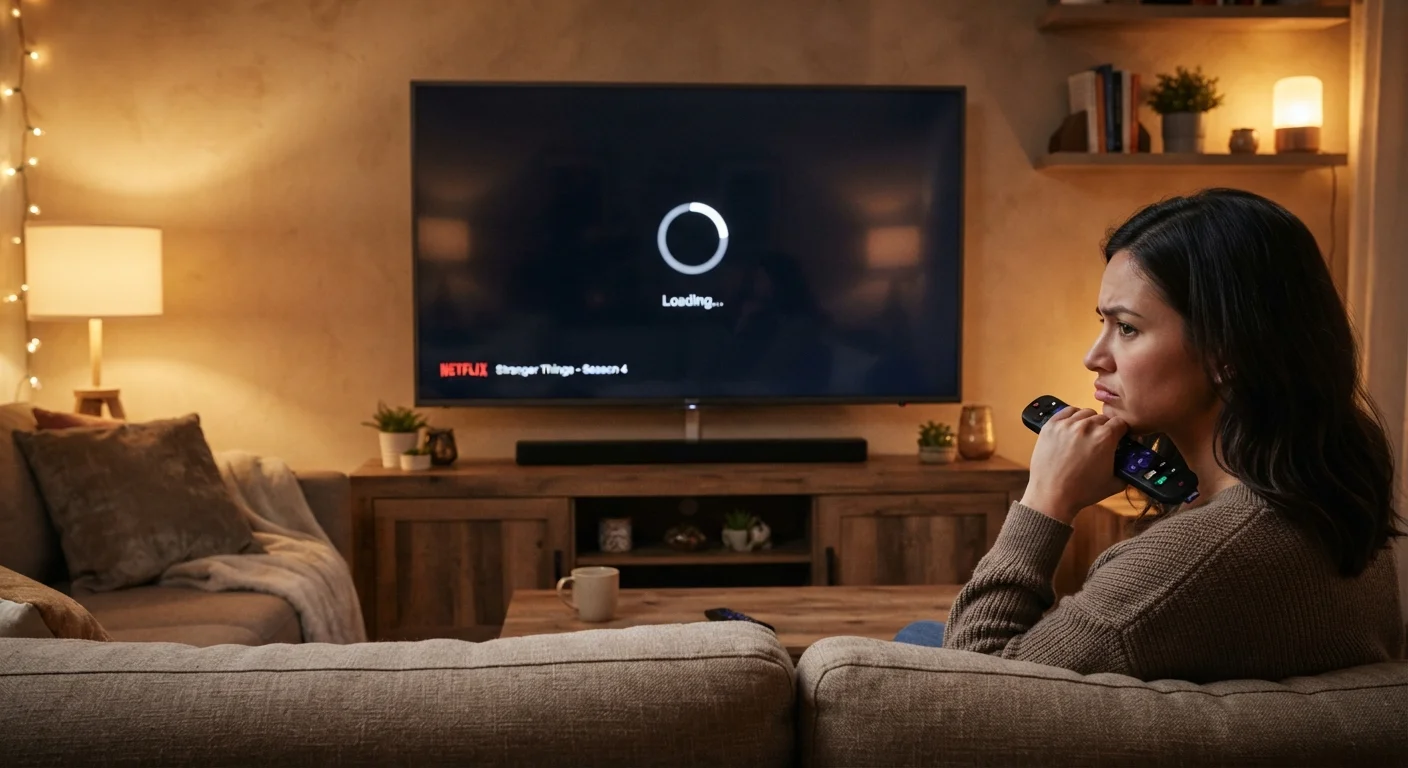
Why Smart TVs Get Sluggish in the First Place
Unlike a traditional television, a smart TV is essentially a computer attached to a display. It runs an operating system, manages applications, and connects to the internet - all on hardware that was finalized at the time of manufacture. That fixed hardware has to keep up with software that grows more demanding every year.
Streaming apps add richer graphics, more complex menus, and heavier background processes with each update. Meanwhile, the TV's processor and RAM remain the same. Over two or three years, the gap between what the software demands and what the hardware can deliver widens noticeably. The result is slower menu navigation, longer app launch times, and occasional freezes that weren't there when the TV was new.
Understanding this dynamic helps you make smarter decisions about how you maintain the device - and when it's time to consider alternatives. If your laptop is showing similar symptoms, the causes overlap in interesting ways; see our article on why laptops slow down over time for a useful comparison.
Never restarting the TV between viewing sessions.
Why it happens: Smart TVs look fully off when in standby, so most people assume they're resting properly. In reality, many apps and background services keep running in a low-power state.
Installing every available streaming app, even ones rarely used.
Why it happens: Smart TV app stores make installation feel effortless, and it's tempting to add apps 'just in case.' Each app, however, can run background syncing and consume limited onboard storage.
Ignoring software update notifications for months at a time.
Why it happens: Updates can feel disruptive - they interrupt viewing and sometimes change familiar menus. Many users postpone them indefinitely without realizing the cost.
Placing the TV in a confined space with poor airflow.
Why it happens: Smart TVs are thought of as flat screens rather than computers, so ventilation is rarely considered. Enclosed entertainment units and wall-flush mounting can trap heat around the chassis.
Skipping cache-clearing because the menu steps seem complicated.
Why it happens: Cache management is buried in settings submenus that vary by TV brand, making the process feel technical and easy to avoid.
Practical Steps to Restore Speed
Once you understand why slowdowns happen, the fixes become more intuitive. Most improvements come from reducing the load on the TV's limited memory and storage.
1-2 GB
Typical RAM in budget and mid-range smart TVs
Many smart TVs shipped with 1-2 GB of RAM, a capacity that streaming apps have increasingly strained as their interfaces grow more complex.
8-16 GB
Common onboard storage capacity in smart TVs
With the operating system consuming a portion of that space, even a modest collection of streaming apps can push storage to its limits relatively quickly.
Clear app cache regularly. Most smart TV platforms (such as Android TV, Tizen, or webOS) allow you to clear cached data for individual apps through the settings menu. Doing this every few months prevents cache buildup from filling storage and slowing read speeds.
Restart the TV from the menu, not just the remote. A full software restart - not just switching to standby - flushes temporary memory and closes background processes. Some TVs benefit from being fully unplugged for 30 seconds to complete a true power cycle.
Uninstall apps you no longer use. Each installed app can run background services and consume storage. Keeping only what you actively watch reduces the operating system's workload at startup and during use.
Consider a factory reset as a last resort. A factory reset wipes cached data, removes installed apps, and returns the system software to a clean state. It requires you to sign back into accounts and reinstall apps, but it often delivers the most dramatic speed improvement.
If the built-in platform remains slow even after these steps, an external streaming device connected via HDMI can act as a more capable replacement for the TV's native apps. Our guide to streaming devices vs. smart TV built-in apps explains the performance and usability trade-offs involved. For broader habits that extend device lifespan, see getting more life out of your home electronics.
Factory Reset Erases All Settings
A factory reset will remove all downloaded apps, stored account credentials, picture calibration settings, and any custom configurations you've made. Before proceeding, note down your preferred picture and sound settings, and confirm you have login information for any streaming accounts. The reset itself is safe, but re-setup takes time.
The content on this site is for informational purposes only and is not a substitute for professional advice. Always consult a qualified professional for guidance specific to your situation.