

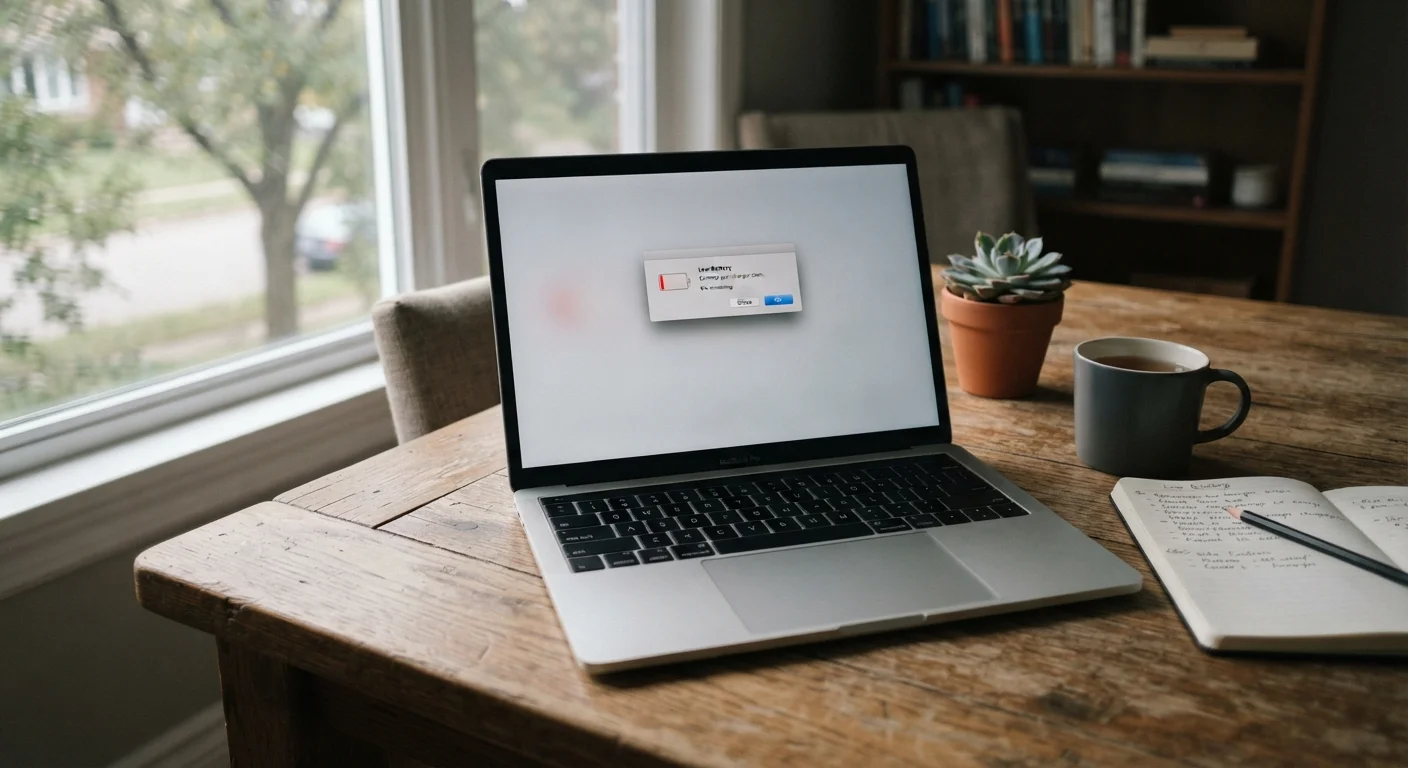
Why the Number on the Box Rarely Matches Your Day
When a laptop is advertised with "up to 15 hours of battery life," that figure comes from a controlled test - not from someone working the way you actually do. Manufacturers follow standardized benchmarks designed to measure maximum potential runtime, which means low screen brightness, minimal processing load, and limited wireless activity. The result is a number that reflects a ceiling, not a typical experience.
For most people doing a mix of web browsing, document work, and occasional video streaming, runtime lands considerably lower. Understanding the gap between spec-sheet claims and reality helps you set accurate expectations and make smarter decisions when comparing machines. The myth-versus-fact pairs below address the most common misunderstandings directly.
Myth
The battery life number on the box tells me how long my laptop will actually last.
Fact
Manufacturer figures represent best-case lab tests. Real-world runtime is typically 40-60% of the advertised number under normal workloads.
Manufacturers use standardized testing conditions - low screen brightness (often 150 nits or less), Wi-Fi connected but largely idle, and minimal background processing - to generate their quoted hours. These conditions rarely match how people actually use a laptop. Streaming video, running a browser with multiple tabs, joining video calls, or editing documents all draw significantly more power than an idle test environment. Independent reviewers consistently find that real-world battery life lands well below the advertised figure for most machines.
Myth
A bigger battery (more watt-hours) always means longer battery life.
Fact
Battery capacity matters, but efficiency of the processor and display type can matter just as much or more.
Watt-hours (Wh) measure how much energy a battery stores, but how quickly that energy is consumed depends heavily on the hardware drawing from it. A laptop with a power-hungry processor and a high-refresh-rate display can drain a large battery faster than a power-efficient chip drains a smaller one. Processor architecture - particularly newer designs built around efficiency cores - has become one of the strongest predictors of real-world runtime, sometimes more so than raw battery size.
Myth
Keeping the laptop plugged in all the time will ruin the battery quickly.
Fact
Modern laptops include charge management circuits that prevent continuous overcharging, though heat remains a genuine concern.
Most current laptops stop charging once the battery reaches 100% and switch to running directly off wall power, so the battery isn't being actively overcharged during extended plug-in sessions. That said, sustained high temperatures - which can result from heavy workloads while plugged in - do accelerate battery degradation over time. Many manufacturers now offer a "battery care" or charge-limit mode (capping charge at around 80%) specifically for users who work plugged in most of the day. Check your laptop's power settings or companion software for this option.
Myth
Screen brightness has only a small effect on battery life.
Fact
Display brightness is one of the single largest variables affecting how long a charge lasts.
The display panel is among the most power-hungry components in a laptop. Running a screen at full brightness versus 50% brightness can represent a difference of one to several hours of runtime depending on panel type and size. OLED displays, for instance, consume less power displaying dark content (since black pixels are off) but can draw more power than LCD panels when showing bright, colorful content. Reducing brightness to a comfortable working level is one of the most effective single adjustments a user can make to extend a charge.
Myth
Closing apps you aren't using has little impact on battery life.
Fact
Background apps, syncing services, and active wireless radios continuously draw power even when you aren't actively using them.
Applications running in the background - cloud sync services, antivirus scans, browser extensions, and notification-fetching apps - all consume processor cycles and network bandwidth, both of which drain the battery. Similarly, Bluetooth and Wi-Fi radios use power even when no data is actively transferring. Closing unused programs, disabling Bluetooth when not in use, and using your operating system's battery saver mode can extend runtime meaningfully without requiring any hardware changes. See practical laptop maintenance habits that can also help here.
What Actually Drains Your Battery - and What You Can Do About It
Several hardware and software factors work together to determine how long your charge actually lasts. Screen brightness and processor load are the biggest culprits, but background software, wireless radios, and even the type of storage in your machine all play a role. Understanding these variables gives you real control over your battery day to day.
Avoid Draining to Zero Regularly
Lithium-ion batteries - the type found in virtually all modern laptops - degrade faster when routinely discharged to 0%. Most battery health guidance suggests keeping charge levels between roughly 20% and 80% for day-to-day use to slow long-term capacity loss. Consult your laptop manufacturer's documentation for model-specific recommendations.
On the hardware side, chip architecture has become increasingly important. Processors built with dedicated efficiency cores are specifically designed to handle light tasks - like reading email or writing a document - while consuming minimal power, reserving heavier cores only when processing demand spikes. This design has significantly improved real-world battery life on machines that use it, independent of battery size. For a parallel look at how similar dynamics play out on phones, see our guide on smartphone battery capacity and drain factors.
On the software side, your operating system's built-in battery report tools (available on both Windows and macOS) can show you which apps are consuming the most power. Closing or limiting high-drain applications, enabling battery saver modes, and reducing screen brightness to a comfortable working level are practical steps that require no technical expertise. For broader guidance on keeping your machine performing well, learn what causes laptops to slow down over time - many of the same culprits affect both performance and battery life.
Advertised Hours Are Not a Promise
Battery life figures printed on a box or listed on a product page reflect controlled lab conditions, not your actual usage. Treat them as a ceiling, not an expectation. Always research independent third-party battery tests before making a purchase decision based on runtime claims.
Finally, keep in mind that battery capacity naturally declines with age and charge cycles. A laptop that delivered good runtime when new will hold less charge after a few years of regular use. Most operating systems now include battery health reporting tools that show remaining capacity relative to the original design capacity - worth checking if your runtime has noticeably shortened.
~50%
Typical real-world vs. advertised battery life gap
Independent laptop reviewers broadly find that real-world runtime under mixed workloads often falls to around half the manufacturer's quoted figure.
150 nits
Common brightness used in manufacturer battery tests
Many standardized battery tests use screen brightness settings well below what most users prefer in a normally lit room, flattering the quoted runtime figure.
The content on this site is for informational purposes only and is not a substitute for professional advice. Always consult a qualified professional for guidance specific to your situation.