

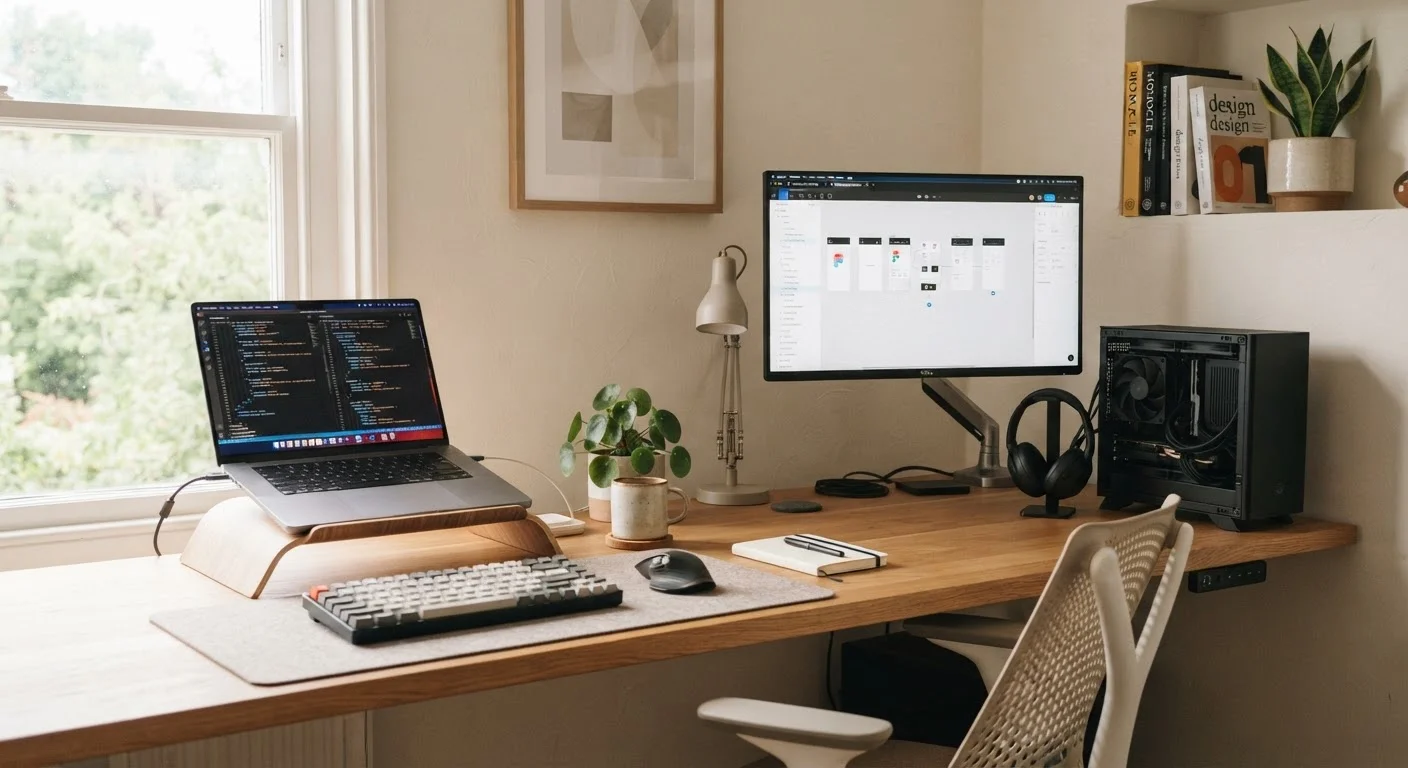
Option A
Desktop Computer
The stationary powerhouse built for a dedicated workspace.
Best for: Users who work primarily at a desk and want maximum performance, screen real estate, and long-term upgradeability.
Option B
Laptop
The go-anywhere all-in-one for flexible, mobile computing.
Best for: Users who move between locations, work from multiple rooms, or need a single device that travels with them.
What Actually Separates These Two Form Factors
At the most basic level, a desktop separates its components - processor, storage, power supply - into a tower or compact chassis that sits in one place and connects to an external monitor, keyboard, and mouse. A laptop integrates all of those parts, plus a display, keyboard, trackpad, and battery, into a single portable unit.
That physical difference shapes nearly every tradeoff that follows. Desktops have more internal space, so manufacturers can fit larger cooling systems, higher-wattage processors, and more storage drives. Laptops sacrifice some of that headroom to stay thin and light enough to carry. Neither compromise is inherently wrong - they just suit different habits. See how the two compare across the dimensions most people care about below.
| Criterion | Desktop | Laptop |
|---|---|---|
| Portability | Stationary, requires desk | Fully portable with battery |
| Performance per dollar | Generally higher | Slightly lower at same price |
| Upgradeability | RAM, storage, GPU swappable | Often limited or none |
| Display | External monitor required | Built-in screen included |
| Space needed | Dedicated desk setup | Works in any room |
| Repairability | Easier to service | Often needs professional repair |
| Power outage protection | None (UPS required) | Built-in battery backup |
Performance and Upgradeability: Where Desktops Hold an Advantage
For raw performance at a given price, desktops tend to come out ahead. Because they're not constrained by battery life or thermal limits from a compact chassis, desktop processors and graphics cards can run at higher sustained speeds. This matters most for tasks like video editing, 3D rendering, or running multiple applications simultaneously.
Upgradeability is another area where desktops shine. Many desktop models allow you to swap in more RAM, add a larger hard drive, or install a more capable graphics card years after purchase - extending the machine's useful life without replacing it entirely. Most laptops, by contrast, have components soldered to the motherboard, making upgrades difficult or impossible. Understanding when a dedicated GPU matters can help you gauge whether a desktop's graphics advantage is relevant to your actual workload.
~60%
Share of U.S. adults owning a laptop
Pew Research Center surveys indicate laptops consistently outpace desktop ownership among American adults, reflecting a broader shift toward mobile computing.
3-5 years
Typical useful life for a laptop
Consumer technology analysts generally estimate three to five years of practical use for most laptops before performance or battery limitations become significant.
That said, the gap has narrowed considerably. Modern laptop processors handle everyday tasks - web browsing, document editing, video calls, light photo editing - without breaking a sweat. For most households, a mid-range laptop is genuinely sufficient.
Portability, Setup, and Space Requirements
A laptop's defining advantage is that it goes where you go. Working from the kitchen table in the morning and a library in the afternoon? That's seamless with a laptop and impractical with a desktop. The built-in battery means a power outage won't cut your session short, and the integrated display removes the need to budget for or find room for a separate monitor.
Desktops, on the other hand, require a permanent home: a desk, monitor, and enough outlets for all the peripherals. That's a real constraint in smaller living spaces. But in dedicated home offices or spare rooms, the larger display options and ergonomic flexibility of separate components can make for a more comfortable daily setup. Laptop weight and materials is worth exploring if portability is your priority - not all portable machines are equally easy to carry.
The Hybrid Setup Worth Considering
Using a laptop with an external monitor, keyboard, and mouse at home is sometimes called a "docked" setup. It gives you the ergonomic benefits of a desktop when you're stationary and full portability when you need to move. A USB-C or Thunderbolt dock can connect multiple peripherals through a single cable, simplifying the switch between modes.
A growing number of users land on a middle path: a laptop as their primary machine, paired with an external monitor and keyboard when they're home. This setup captures most of the ergonomic benefits of a desktop without sacrificing mobility.
Maintenance, Longevity, and What to Expect Over Time
Desktops are generally easier to service. Replacing a failing component - a fan, a drive, a power supply - often requires only a screwdriver and a replacement part. Laptops, being compact, are more complex to repair, and some repairs require professional service.
Both form factors benefit from basic upkeep. For laptops, habits like keeping vents clear, managing storage thoughtfully, and monitoring battery health go a long way. Practical laptop maintenance habits outlines what's actually worth doing on a regular basis. If you're new to computers altogether, a beginner's guide to getting started covers setup fundamentals that apply to either form factor. Your choice of operating system also plays a role in long-term experience - comparing Windows, macOS, and ChromeOS can clarify which environment suits your workflow before you commit to any hardware.
The content on this site is for informational purposes only and is not a substitute for professional advice. Always consult a qualified professional for guidance specific to your situation.