

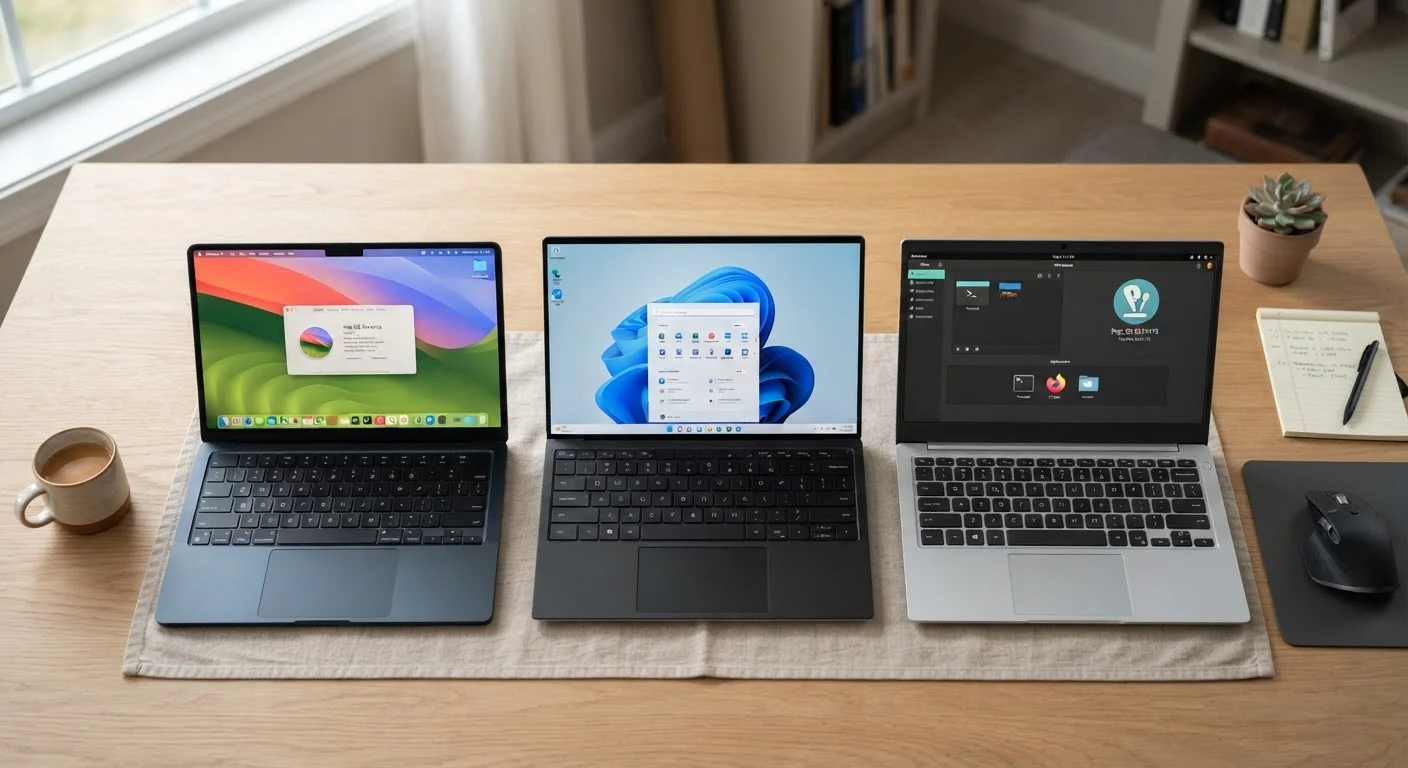
Our Verdict
No single operating system is objectively superior - each is optimized for a different kind of user. Windows offers the most flexibility and software compatibility, macOS rewards those already invested in Apple devices, and ChromeOS removes most of the friction for users whose work lives in a browser. Matching the OS to your actual daily tasks will serve you better than chasing specs.
| Best for | Recommended |
|---|---|
| Users needing broad software and hardware compatibility | Windows |
| Users who own other Apple devices and value a polished, unified experience | macOS |
| Users who primarily browse, email, and use web-based apps | ChromeOS |
| First-time computer owners wanting simplicity and low maintenance | ChromeOS |
What an Operating System Actually Does
An operating system (OS) is the foundational software that runs your computer. It manages the hardware - your screen, keyboard, processor, and storage - and serves as the platform on which all other programs run. When you open a web browser, save a document, or adjust your display settings, the OS is coordinating all of it behind the scenes.
The three most common desktop operating systems in the U.S. are Windows (made by Microsoft), macOS (made by Apple), and ChromeOS (made by Google). Each takes a different philosophy toward what a computer should do and who it should serve. If you're also weighing mobile platforms, our plain-language breakdown of Android vs. iOS covers similar ground for smartphones.
Software Compatibility: What Can You Actually Run?
This is often the deciding factor for most users. Windows has the largest software library of the three - if a desktop application exists, there's an overwhelming chance it runs on Windows. This includes specialized tools for gaming, graphic design, engineering, accounting software, and niche industry programs.
macOS supports a strong selection of professional creative software and has a reputation for stability among designers, video editors, and developers. However, some Windows-only programs simply don't have a macOS version, which can matter depending on your profession or school requirements.
ChromeOS takes the most different approach: it's built around the Chrome browser and runs web-based apps and Android apps from the Google Play Store. It does not run traditional Windows or macOS programs. For users whose needs are met by Google Docs, web email, video calls, and streaming, this isn't a limitation - but it can be a hard stop for others.
| Windows | macOS | ChromeOS | |
|---|---|---|---|
| Software library | Largest - broadest app support | Strong creative & developer apps | Web & Android apps only |
| Hardware options | Many brands, wide price range | Apple hardware only | Many brands, often budget-friendly |
| Learning curve | Moderate - familiar to most | Low-moderate - minor adjustment | Low - browser-centric, simple |
| Update experience | Can be disruptive, restart required | Infrequent, requires attention | Background updates, minimal interruption |
| Offline capability | Full offline functionality | Full offline functionality | Limited - some tasks need internet |
| Best suited for | Broad compatibility needs | Apple ecosystem users, creatives | Browser-based, low-maintenance use |
Ease of Use and Learning Curve
Windows is familiar to the largest number of users, partly because it ships on most PCs sold in the U.S. Its interface has evolved over decades, and while some settings menus can feel layered and complex, the core experience - desktop, taskbar, Start menu - is widely recognized.
macOS has a reputation for clean design and intuitive navigation. New Mac users coming from Windows sometimes need a short adjustment period (keyboard shortcuts differ, the app menu lives at the top of the screen rather than inside each window), but most find the transition manageable within a few days.
ChromeOS arguably has the lowest learning curve of the three. Its interface resembles a simplified desktop - a launcher, a shelf of pinned apps, and a browser that does most of the heavy lifting. This makes it a strong option for first-time users or anyone wanting minimal setup friction. See our guide on what first-time computer owners should know for a broader orientation.
Try Before You Decide
If you have access to a friend's or family member's computer, spending 30 minutes using an unfamiliar OS is more informative than any spec sheet. Many public libraries also have computers available, and Chromebooks are commonly found at schools. Hands-on time quickly reveals whether an interface feels natural to you.
Updates, Security, and Maintenance
All three operating systems push regular security updates, but the maintenance experience differs. Windows updates can occasionally be disruptive - some require restarts at inconvenient times and can take several minutes to complete. Microsoft has improved update management in recent versions, but it remains a common user complaint.
macOS updates are generally less frequent but still require attention. Apple typically supports its hardware with OS updates for several years, though older Macs eventually stop receiving the latest version.
ChromeOS updates automatically in the background and rarely interrupt your work. Google also tends to extend software support for Chromebooks through a published Auto Update Expiration (AUE) date, which is worth checking before purchasing a device.
Check the AUE Date on Chromebooks
Every Chromebook has a published Auto Update Expiration (AUE) date - the point after which Google stops delivering software and security updates. A device past its AUE date is no longer safe to use for sensitive tasks like banking or email. Always verify the AUE date on Google's official support page before purchasing a Chromebook, especially if buying a refurbished or older model.
In terms of malware risk, all platforms benefit from careful browsing habits and keeping software current. No OS is entirely immune, though ChromeOS's sandboxed architecture and limited local software installation make it a smaller target in practice.
Hardware Choices and Cost Considerations
Windows runs on hardware from dozens of manufacturers across a wide price range - from budget laptops to high-end workstations. This gives buyers substantial flexibility. If you're weighing form factor alongside OS, our desktop vs. laptop comparison walks through the tradeoffs.
macOS runs exclusively on Apple hardware, which sits at a premium price point. That said, Apple controls both the hardware and software, which allows for tight optimization - a factor that can meaningfully affect performance and battery life in ways that raw specs don't always predict. This mirrors a broader truth in consumer electronics: as explored in our piece on why similar specs can feel different, software integration shapes real-world experience.
ChromeOS devices (Chromebooks) are available at a wide range of price points, with many budget options that perform well for web-centric tasks precisely because ChromeOS demands less processing power than Windows or macOS.
~72%
Global desktop OS market share held by Windows
According to StatCounter's global desktop operating system data, Windows consistently holds the largest share of desktop users worldwide.
~15%
Global desktop market share held by macOS
StatCounter data places macOS as the second most-used desktop platform, with usage concentrated in creative and professional fields.
The content on this site is for informational purposes only and is not a substitute for professional advice. Always consult a qualified professional for guidance specific to your situation.