

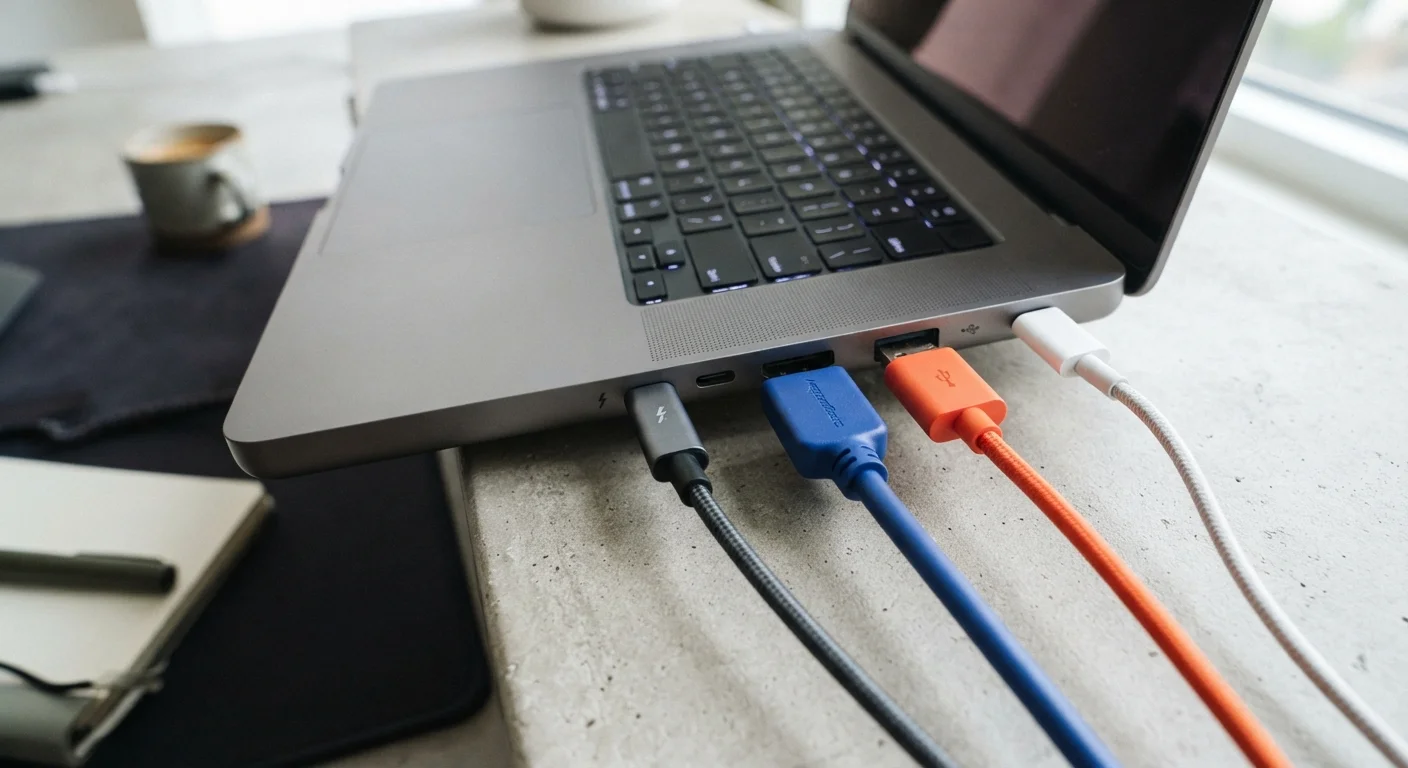
Why Ports Matter When Choosing a Laptop
Ports determine what you can plug in, how fast data moves, and whether your laptop can charge a phone, drive an external monitor, or connect to a projector without an adapter. As laptops have gotten thinner, many models have dropped the number of physical ports - which makes understanding what each remaining port can do even more important.
Before diving into individual connectors, it helps to know that the physical shape of a port and the protocol running through it are two different things. USB-C, for example, is a connector shape. Thunderbolt is a protocol that sometimes uses that same shape. Mixing them up is one of the most common sources of confusion for everyday users. See our pre-purchase checklist for a practical walkthrough of port evaluation before committing to any laptop.
| USB-C max data speed (USB 3.2 Gen 2) | Up to 20 Gbps (USB Implementers Forum specification) |
| Thunderbolt 4 max data speed | Up to 40 Gbps (Intel Thunderbolt 4 specification) |
| HDMI 2.1 max resolution supported | Up to 10K (HDMI Forum specification) |
| USB-A (USB 3.0) max data speed | Up to 5 Gbps (USB Implementers Forum specification) |
| Thunderbolt 4 max monitor support | Two 4K displays simultaneously (Intel Thunderbolt 4 specification) |
| USB Power Delivery max wattage | Up to 240 W (USB PD 3.1) (USB Implementers Forum specification) |
Port-by-Port Breakdown
Here is what each common port type does and when you are most likely to use it.
USB-C
USB-C is the small, pill-shaped connector increasingly found on laptops, tablets, and phones. Depending on the version of USB inside, it can transfer files at speeds ranging from 480 Mbps up to 20 Gbps. Many USB-C ports also support Power Delivery, meaning one cable can charge your laptop and transfer data simultaneously. Because USB-C is reversible, there is no wrong orientation when plugging in.
Thunderbolt (3 and 4)
Thunderbolt uses the USB-C connector but runs a more capable Intel-developed protocol on top of it. Thunderbolt 4 reaches 40 Gbps - double the top speed of USB 3.2 Gen 2 - and can drive two 4K monitors at once. It also supports daisy-chaining peripherals and charging. Look for a small lightning bolt icon next to the port to confirm it is Thunderbolt rather than standard USB-C.
USB-C Port ≠ Thunderbolt Port
All Thunderbolt 4 ports use the USB-C connector shape, but not every USB-C port supports Thunderbolt. Thunderbolt ports are typically marked with a lightning bolt icon. If you plug a Thunderbolt cable into a standard USB-C port, it will work at USB speeds - not Thunderbolt speeds. Always check the symbol next to the port on your device.
USB-A
The traditional rectangular USB port most peripherals still rely on. USB 3.0 (also labeled USB 3.2 Gen 1) moves data at up to 5 Gbps and handles everyday tasks like connecting a mouse, keyboard, flash drive, or external hard drive without issue. Many slim laptops are dropping USB-A entirely in favor of USB-C, which is one reason a small USB hub can be a worthwhile accessory.
HDMI
HDMI is the standard for connecting a laptop to a TV, projector, or external monitor using a single cable that carries both audio and video. HDMI 2.0 handles 4K at 60 Hz, while HDMI 2.1 supports up to 4K at 120 Hz or 8K at 60 Hz. For most home or office setups, any HDMI version handles everyday display needs comfortably.
DisplayPort and Mini DisplayPort
DisplayPort is common on desktop monitors and delivers strong support for high refresh rates, making it popular with users who care about smooth screen performance. Mini DisplayPort is a smaller version that appeared on older MacBooks and some Windows ultrabooks. Both carry audio and video simultaneously, similar to HDMI.
SD Card Reader
Often overlooked, SD card slots are a practical convenience for anyone who uses a camera. A built-in reader transfers photos and video directly from a card without a separate adapter. Some thin-and-light laptops have removed this slot, so it is worth confirming its presence if it matters to your workflow. The laptop spec sheet glossary covers storage-related terms that come up alongside this feature.
USB-C
A small, oval-shaped connector that can carry power, data, and video signals through a single cable. Its reversible design means there is no wrong way to plug it in.
Thunderbolt
A high-performance protocol that runs over a USB-C connector. It offers significantly faster data transfer and more power delivery than standard USB-C, and supports daisy-chaining multiple devices.
HDMI
High-Definition Multimedia Interface - a common port for sending audio and video to an external display, TV, or projector using a single cable.
USB-A
The traditional rectangular USB port most people recognize. It is still widely used for flash drives, mice, keyboards, and other peripherals.
DisplayPort
A video output standard often found on desktop monitors and some laptops. It can support high refresh rates and multiple monitors from one connection.
Data Transfer Rate
How quickly files or signals move between two devices, usually expressed in gigabits per second (Gbps). Higher numbers mean faster transfers.
Daisy-Chaining
Connecting multiple devices in sequence from a single port - for example, linking a monitor to a dock, then a second monitor to that dock, all from one laptop port.
Power Delivery (USB PD)
A charging standard built into many USB-C ports that allows higher wattage charging of laptops, tablets, and phones through a single cable.
Practical Tips for Managing Ports
Understanding what each port does is only half the picture. Here is how to apply that knowledge when evaluating a laptop or setting up your workspace.
- Count your needs first. List every device you connect regularly - monitor, mouse, keyboard, webcam, phone charger - then check whether the laptop has enough ports and the right types to accommodate them without constant swapping.
- A USB hub or dock extends your options. If a laptop only has two USB-C ports, a quality hub can add USB-A, HDMI, SD card, and Ethernet in one device. Thunderbolt docks offer the most capability and can charge the laptop at the same time.
- Check cable compatibility. A USB-C cable that came with your phone may not support video output or high-wattage charging. Look for cables rated for the task you need - package labeling typically lists supported specs.
- Mind the version numbers. HDMI 1.4 and HDMI 2.1 look identical from the outside but perform very differently. The same is true for USB 3.0 versus USB 2.0 USB-A ports. Confirm versions in the laptop's official spec sheet, not just the product listing headline.
For a broader look at how connectivity fits into home setups - including smart TVs and audio systems - see our home electronics overview. If you are still deciding between a desktop and a laptop, the desktop vs. laptop comparison explores how form factor affects port availability and expandability.
40 Gbps
Thunderbolt 4 peak transfer speed
According to Intel's Thunderbolt 4 specification, this is eight times faster than USB 3.0's 5 Gbps ceiling.
240 W
Max USB Power Delivery charging output
The USB PD 3.1 standard raised the ceiling to 240 W, making USB-C viable for charging high-performance laptops.
48 Gbps
HDMI 2.1 bandwidth
The HDMI Forum's 2.1 specification delivers enough bandwidth to support 4K at 120 Hz or 8K at 60 Hz without compression.
The content on this site is for informational purposes only and is not a substitute for professional advice. Always consult a qualified professional for guidance specific to your situation.