

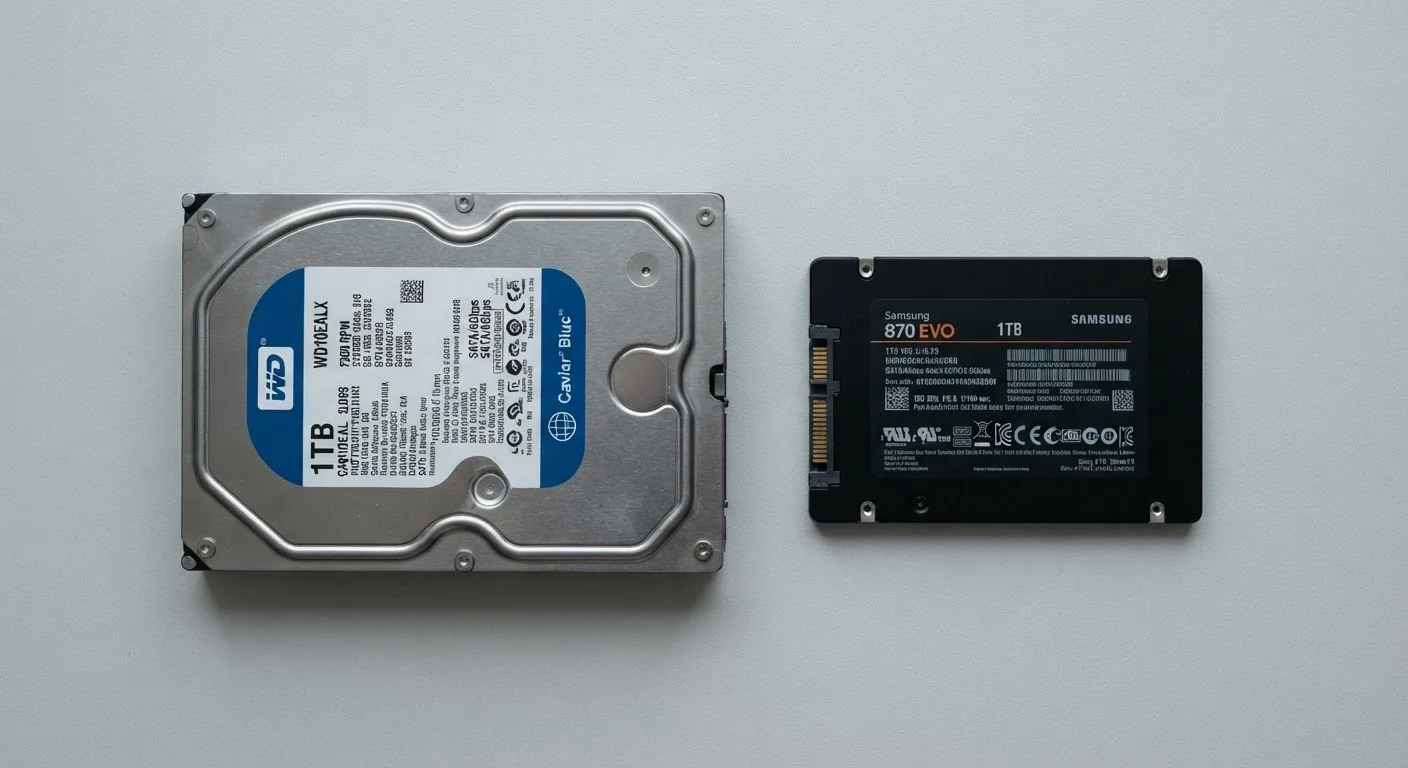
Option A
SSD (Solid-State Drive)
The faster, more durable modern standard.
Best for: Everyday users who want a laptop that boots quickly, handles multitasking smoothly, and survives being carried around.
Option B
HDD (Hard-Disk Drive)
The high-capacity, lower-cost legacy option.
Best for: Users who need to store large files locally and prioritize storage volume over speed or portability.
What Makes These Two Storage Types Different
When a laptop spec sheet lists "256GB SSD" or "1TB HDD," most shoppers focus on the number - the storage size - and overlook the letters that follow. But those letters matter more for how the laptop actually feels to use.
An HDD (Hard-Disk Drive) stores data on a rapidly spinning magnetic platter. A tiny read/write head moves across the surface to find and retrieve information - much like a record needle on vinyl. Because physical parts are moving, there's an inherent delay each time your laptop needs to access a file.
An SSD (Solid-State Drive) contains no moving parts. It stores data on interconnected flash memory chips, similar to what's inside a USB thumb drive. When your laptop requests a file, it's retrieved electronically - no spinning, no seeking, just near-instant access.
That mechanical difference is the root cause of nearly every performance, durability, and energy distinction between the two. To understand how this fits into a laptop's broader performance picture, see our guide to RAM, storage, and processing speed.
| Criterion | SSD | HDD |
|---|---|---|
| How it stores data | Flash memory chips (no moving parts) | Spinning magnetic platters |
| Typical boot time | Under 20 seconds | 45 seconds to 2+ minutes |
| File access speed | Very fast (electronic retrieval) | Slower (mechanical seeking) |
| Durability vs. drops | High - no moving parts to damage | Lower - heads can crash if bumped |
| Power consumption | Lower - better for battery life | Higher - motor draws more power |
| Cost per gigabyte | Higher | Lower |
| Common capacity range (laptops) | 256GB - 2TB | 500GB - 2TB+ |
| Noise | Silent | Audible spinning/clicking |
How the Difference Shows Up in Real Use
The gap between SSD and HDD performance is most obvious during three everyday moments:
- Startup: A laptop with an SSD typically reaches a usable desktop in under 20 seconds. An HDD-equipped machine doing the same job can take a minute or more, even on the same operating system.
- Opening apps: Programs like web browsers, spreadsheet tools, or photo editors load noticeably faster from an SSD because the drive can supply data to the processor much more quickly.
- Copying or moving files: Transferring a large folder - say, a vacation photo album - completes in a fraction of the time on an SSD.
HDDs do close the gap somewhat for large sequential reads (like playing back a stored video file), but for the scattered, unpredictable data requests that define normal computer use, SSDs maintain a clear advantage.
3-5×
Typical SSD speed advantage over HDD
Sequential read speeds for mainstream SSDs commonly range from 500 MB/s to over 3,500 MB/s (NVMe), compared to roughly 80-160 MB/s for typical laptop HDDs.
~$0.03-0.05
Approximate HDD cost per gigabyte (USD)
Hard-disk drives consistently offer more storage per dollar than SSDs, though the gap has narrowed considerably as SSD prices have fallen over recent years.
Battery life is also affected. HDDs draw more power to spin their platters and move mechanical heads. SSDs, having no motor to run, are more energy efficient - a meaningful benefit for laptop users away from an outlet.
On durability: because HDDs rely on precision mechanical components, a hard knock while the drive is active can cause a head crash - a collision between the read head and the platter that can result in permanent data loss. SSDs contain nothing to crash. For a laptop that rides in a bag daily, this distinction is worth taking seriously. Our article on laptop maintenance habits covers how storage care fits into long-term device health.
Where HDDs Still Make Sense
HDDs remain a reasonable choice in specific situations. The clearest is raw storage volume at lower cost. A 2TB HDD is typically available at a significantly lower price than a 2TB SSD, making HDDs attractive for anyone who needs to keep large local archives - video editors, photographers, or households storing years of home videos.
External HDD enclosures - drives that plug into a laptop via USB - offer a practical middle ground: pair a fast SSD inside the laptop for speed, and use an external HDD on a desk for bulk backup storage. This approach avoids the speed penalty while still accessing high-capacity storage affordably.
For desktops used primarily in one location, the portability and shock-resistance advantages of SSDs matter less, making HDDs a more defensible tradeoff. See our desktop vs. laptop comparison for more context on how form factor changes these decisions.
SSD Form Factors: SATA vs. NVMe
Not all SSDs are equal in speed. SATA SSDs connect using the same interface as older HDDs and offer moderate speed improvements. NVMe SSDs (often in the M.2 slot format) use a faster interface and can be three to seven times quicker than SATA SSDs. If a spec sheet lists "NVMe SSD," that's generally a faster drive. The difference matters most for heavy workloads; for casual everyday use, either SSD type will feel dramatically faster than an HDD.
If you're reading laptop spec sheets and encounter the term eMMC, that's a third category - flash storage soldered directly to the motherboard, commonly found in budget laptops. It's faster than an HDD but meaningfully slower than a standalone SSD. Our laptop spec sheet glossary defines eMMC alongside 29 other common terms.
The content on this site is for informational purposes only and is not a substitute for professional advice. Always consult a qualified professional for guidance specific to your situation.